5. Publish a release
Goal: understand and validate that the learner only sees what was published.
Prerequisite: flow 4 done.
Minor or major — the platform decides how much freedom you get
The publish dialog opens with the change list since the last release, grouped by the activity or section that changed, each expandable. Below it, the two publish types — and what they mean for people already taking the course:
| Publish as Minor | Publish as New Version (major) | |
|---|---|---|
| Version | v1.0 → v1.1 | v1.x → v2.0 |
| Existing learners | get the changes | stay on the version they are on |
| New enrolments | get the changes | get the new version |
| Notes | optional | optional |
When Minor is allowed it is marked Recommended and preselected:
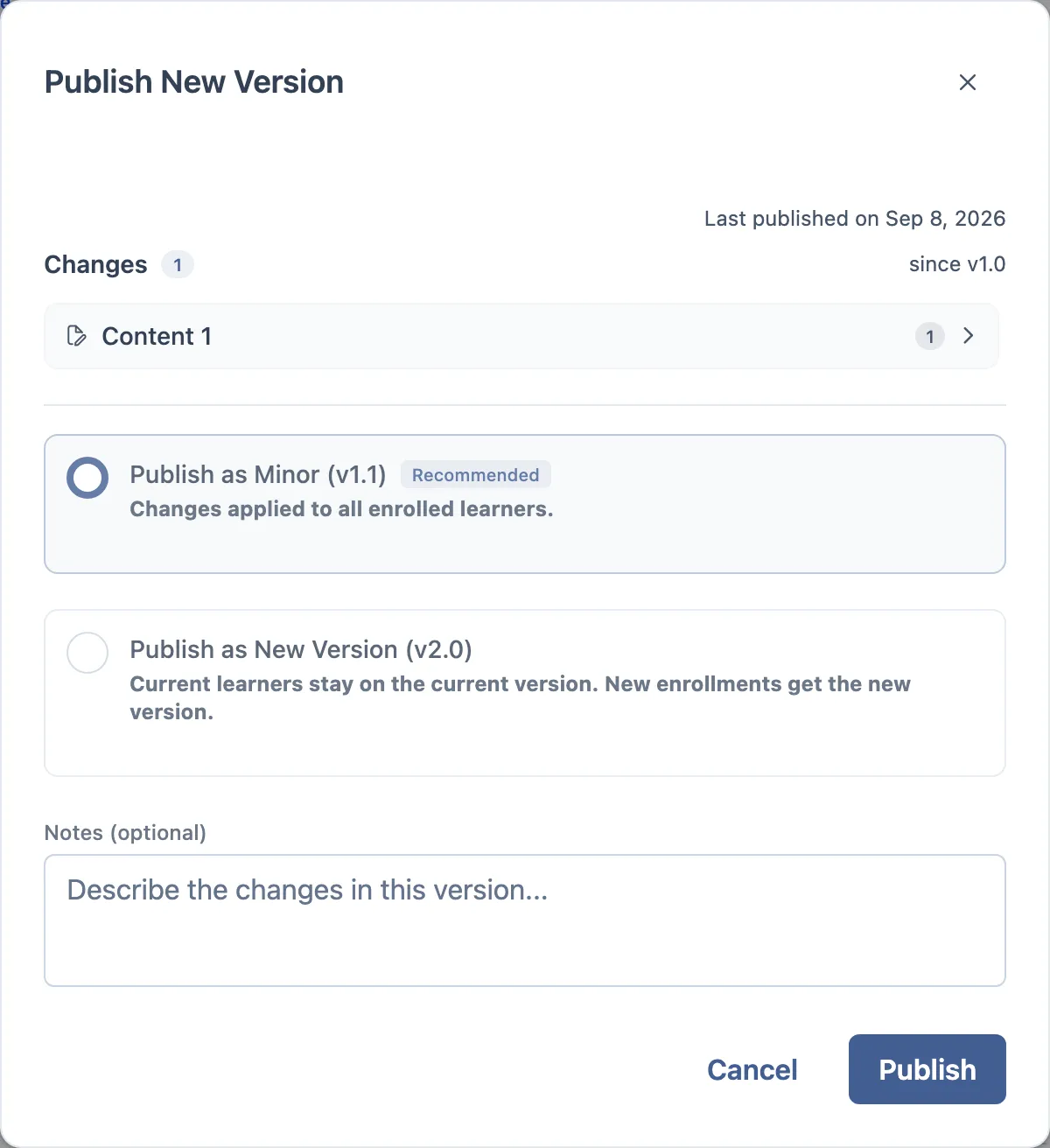
That is the whole point of the split. A minor edits the course under the feet of people mid-way through it; a major leaves them alone and starts a new track.
When minor is taken away from you
The choice is not always yours. The backend classifies every change as Low, Medium or High severity, and one High-severity change disables Minor — the option greys out with “High-impact changes require a new version” and major is marked Required.
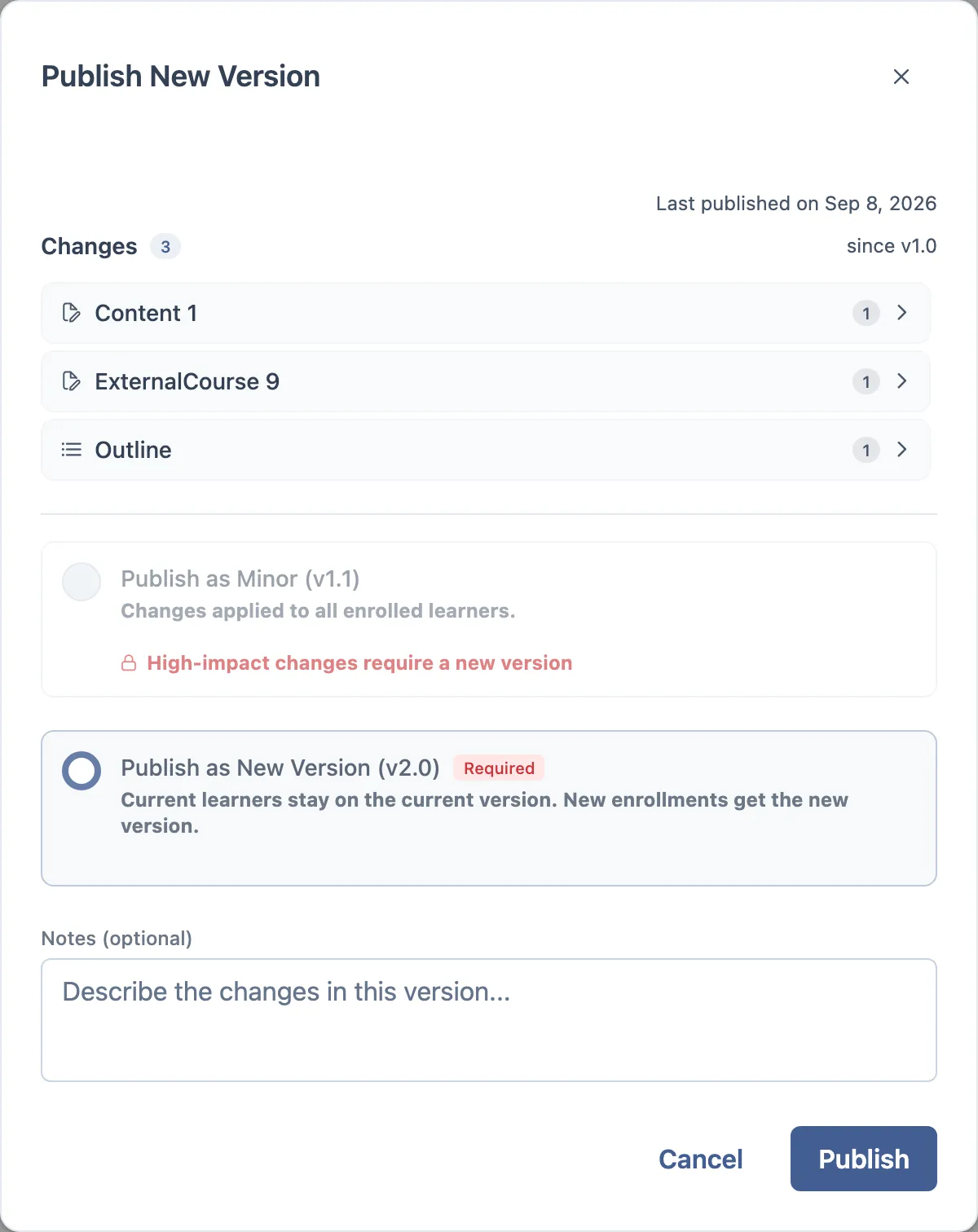
High severity means: this change could invalidate progress a learner has already made.
| Category | Changes that force a new version |
|---|---|
| Course settings | completion settings, certificate settings, recurrence settings |
| Structure | outline structure changed, an activity removed, the activity list replaced |
| Questions | questions added, removed or modified in a quiz or survey |
| Grading | evaluation settings, pass/fail rule, who submits |
| Deadlines | deadline changed, late-submission policy changed |
| Blocks | blocks removed from an activity |
| First publish | there is no previous version to be minor against |
Everything else — new blocks, edited text, a new activity, a renamed module — stays Low or Medium and leaves Minor available. The two screenshots above are the same course: one edited text block, then one activity removed.
The Versions drawer
The branch icon in the workspace header opens Course Releases — the published versions, newest first. The current one is shown as a card: its version, an ACTIVE badge, the date it was frozen, who published it, and how many learners are enrolled on it. A View all releases link opens the full page.
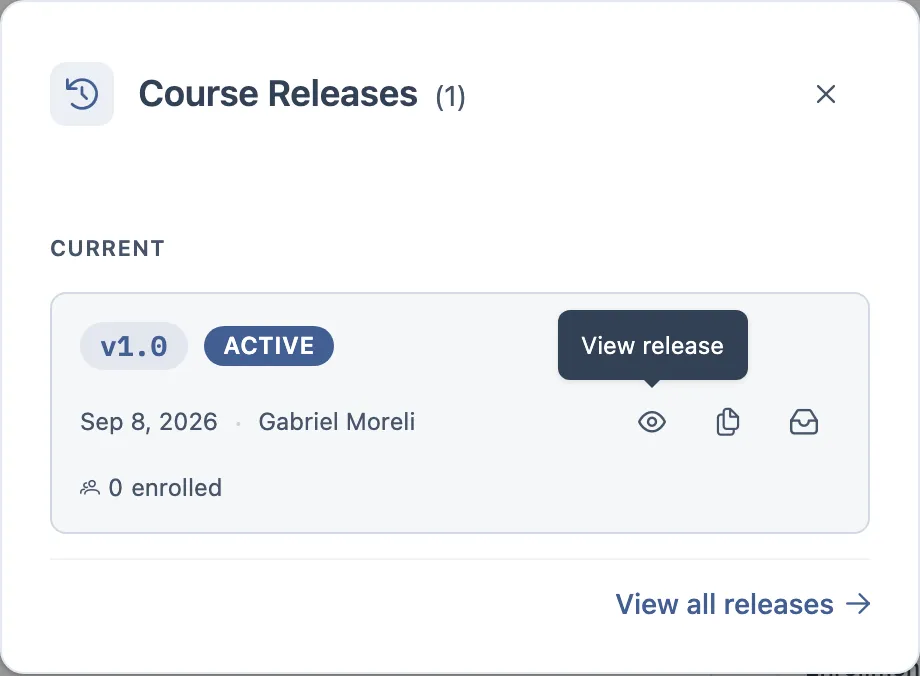
That enrolment count is the number to read before publishing. It tells you how many people a minor publish would affect, and how many a major would leave behind on the old version.
Each release row carries three actions:
| Action | What it does |
|---|---|
| View | opens that release’s content read-only — the course exactly as that version’s learners see it |
| Duplicate | creates a new course seeded from that release, leaving this one untouched. This is also how you go back to an earlier major |
| Archive | retires the release. Offered on the active one, and refused while enrolments still depend on it |
Opening a release also shows its change list — what went into that version, separate from the draft’s change history.
Change history
The clock in the workspace header opens Change History — every save the course has ever taken, newest first, grouped by day.
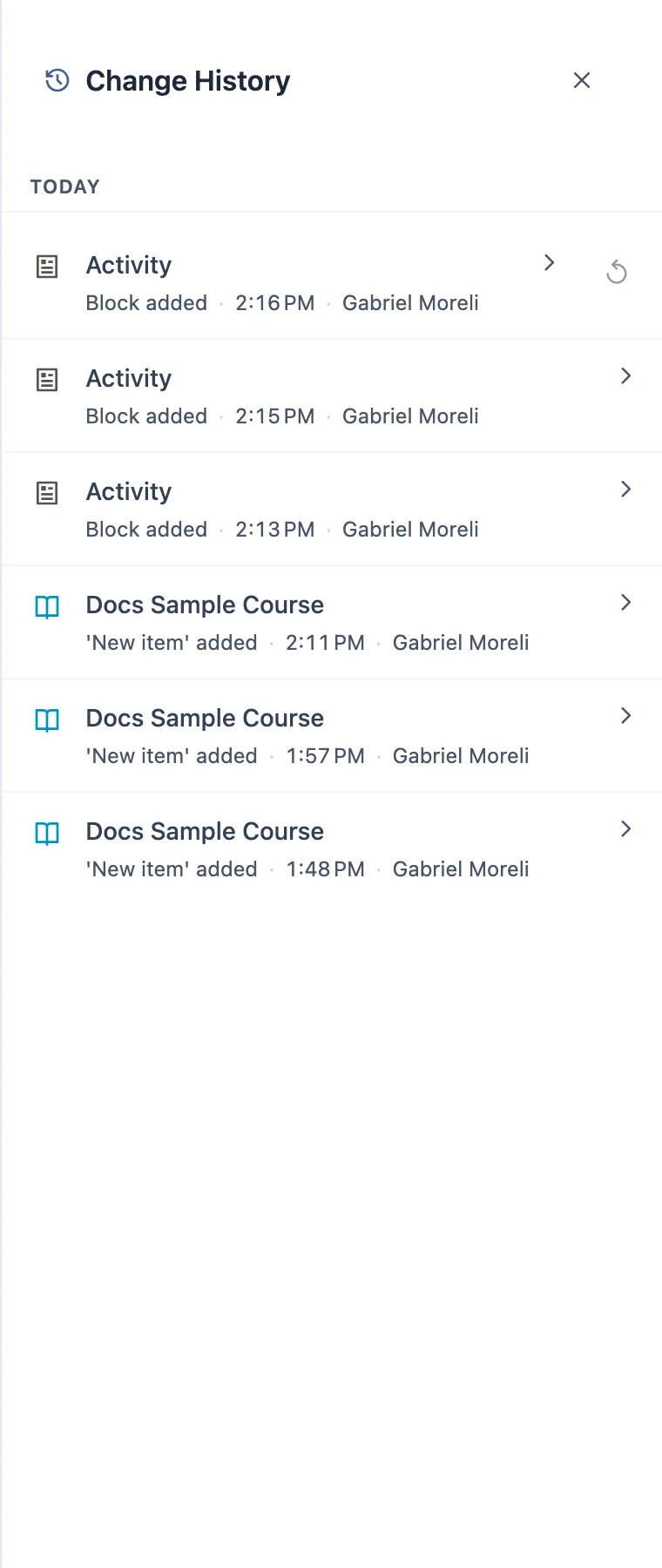
Each row names what changed (“Block added”, “‘New item’ added”), when, and who did it, and expands for detail. Two different ways back:
| Action | Where | What it does |
|---|---|---|
| Undo | only on the newest entry | drops the most recent change and replays the previous state |
| Revert to this point | any older entry | rewinds the course to that snapshot and prunes everything newer |
Reverting asks for confirmation, and it is one-way — there is no redo.
History does not reach past the last major
The revert does not replay the course from the beginning. It starts from the content of the current major release and replays only the changes made after that publish, up to the point you picked.
So the reachable window is: everything since the last major publish, and nothing before it. The timeline still lists older entries — they are the record of what happened — but reverting to one of them lands you on the current release’s content, not on that older state. That is the design, not data loss.
A course that has never been published has no such boundary: its whole history is reachable, because there is no release to start from.
To go back to an earlier major, do not use history — duplicate from that release in the Versions drawer above.
Revert restores content, not identity
This is the part that looks like a bug and is not. A revert restores the course’s content: activities and their blocks, the outline, resources, the type and the release-pinned settings.
It deliberately leaves the course-wide fields exactly as they are:
| Reverted | Left alone |
|---|---|
| Activities, blocks, outline, resources | Title, description, cover image |
| Course type | Category, authors |
| Release-pinned settings — progression, completion, certificate, CRC | Slug, schedule & recurrence, registration key, reference code |
It is the same course-wide split from the settings dialog: those fields are live for everyone, so a revert must not drag them backwards.
The interface does not tell you this. No warning, no dialog copy — the behaviour is intentional but silent, so a tester meeting it for the first time will read it as a partial revert. It is not.
Steps
- Before publishing, open the course preview.
- Publish the first release. It has to be a major — there is nothing to be minor against.
- Edit some text in a lesson. Open Publish: Minor is available and Recommended.
- Cancel. Now remove an activity. Open Publish again: Minor is locked, major is Required.
- Publish as major and watch the version go to the next whole number.
- Open the Versions drawer and check the new release is ACTIVE.
- Open Change History, undo the newest entry, then revert to an earlier point.
What to check
- The change list matches what you actually changed — no phantom entries, nothing missing.
- A low-impact edit keeps Minor enabled; a high-impact one disables it, every time.
- The severity is decided by the change itself, not by how many changes there are.
- After a minor publish, a learner already enrolled sees the change; after a major, that same learner does not.
- Version numbers advance correctly: minor bumps the second number, major bumps the first and resets the second.
- The ACTIVE badge sits on exactly one release, and its enrolled count matches the enrolments list.
- View renders a release read-only; Duplicate produces a separate course; Archive is refused while learners are still on that release.
- Undo is offered only on the newest history entry.
- Reverting to a point after the last major lands exactly there; before it lands on the current release’s content — expected.
- After a revert, the title, cover image, category, authors and slug are unchanged.
- Release notes are optional on both types — but do not expect to see them anywhere afterwards; that is a known gap, not your bug.
Where it usually breaks
- A diff showing a change you did not make, or hiding one you did.
- Minor staying available after a high-impact change — that one is worth reporting loudly.
- Publishing twice in a row and creating a duplicate release.
- The course status badge disagreeing with the actual release.