Survey
A Survey collects answers. No score, no pass mark, no attempts. That single difference is what makes it worth testing separately from the quiz — the same question editor, none of the grading machinery.
The editor has a header (title, instructions, image) and the questions.
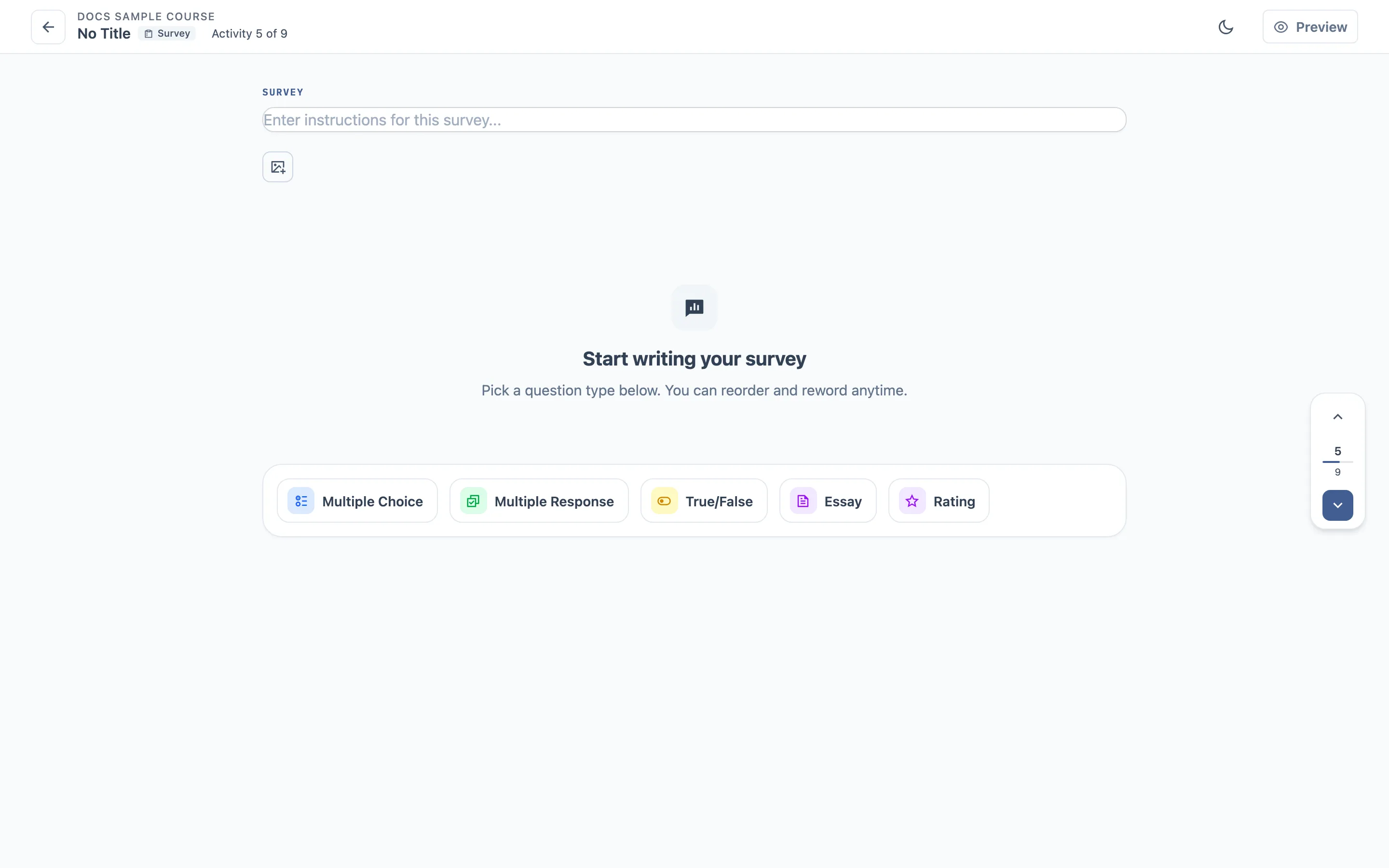
Question types
Five, one more than the quiz:
| Question | Learner does |
|---|---|
| Multiple Choice | picks one option |
| Multiple Response | picks several |
| True/False | picks one of two |
| Essay | types free text |
| Rating | picks a value on a scale |
Rating is survey-only — the quiz does not offer it, because there is nothing to mark correct. That is the difference to look for: no option here is a right answer.
The survey header carries no settings control either. A quiz has one; a survey has nothing to configure.
Reordering questions
Same as the quiz: each question has Move up, Move down, Duplicate and Delete, and the Questions side panel lists them for dragging, jumping and batch moves or deletes. See what activities share.
Steps
- Add a rating question, a multiple choice question and an essay question.
- Confirm the editor offers no pass mark, no attempts and no correct answer.
- As a learner, answer all three and submit.
- Reopen the survey as the same learner and edit the answers.
- As an instructor, look for the responses.
What to check
- No grading settings appear anywhere in the editor.
- Submitting counts as completing the activity and moves progress forward.
- Editing a submitted response replaces it rather than creating a second one.
- Rating and Like render as scales, not as option lists.
- Responses reach the instructor’s view.
Where it usually breaks
- Survey behaving like a quiz — asking for a score or blocking progress.
- Re-submitting creating a duplicate response.
- Progress not advancing after submitting.