2. Course settings
Goal: configure the course and understand which settings reach learners immediately and which wait for a release.
Prerequisite: flow 1 done. Open the dialog with the gear in the workspace header.
This surface decides how the course behaves for every learner, so a wrong setting here does not look like a settings bug — it looks like a broken course three flows later.
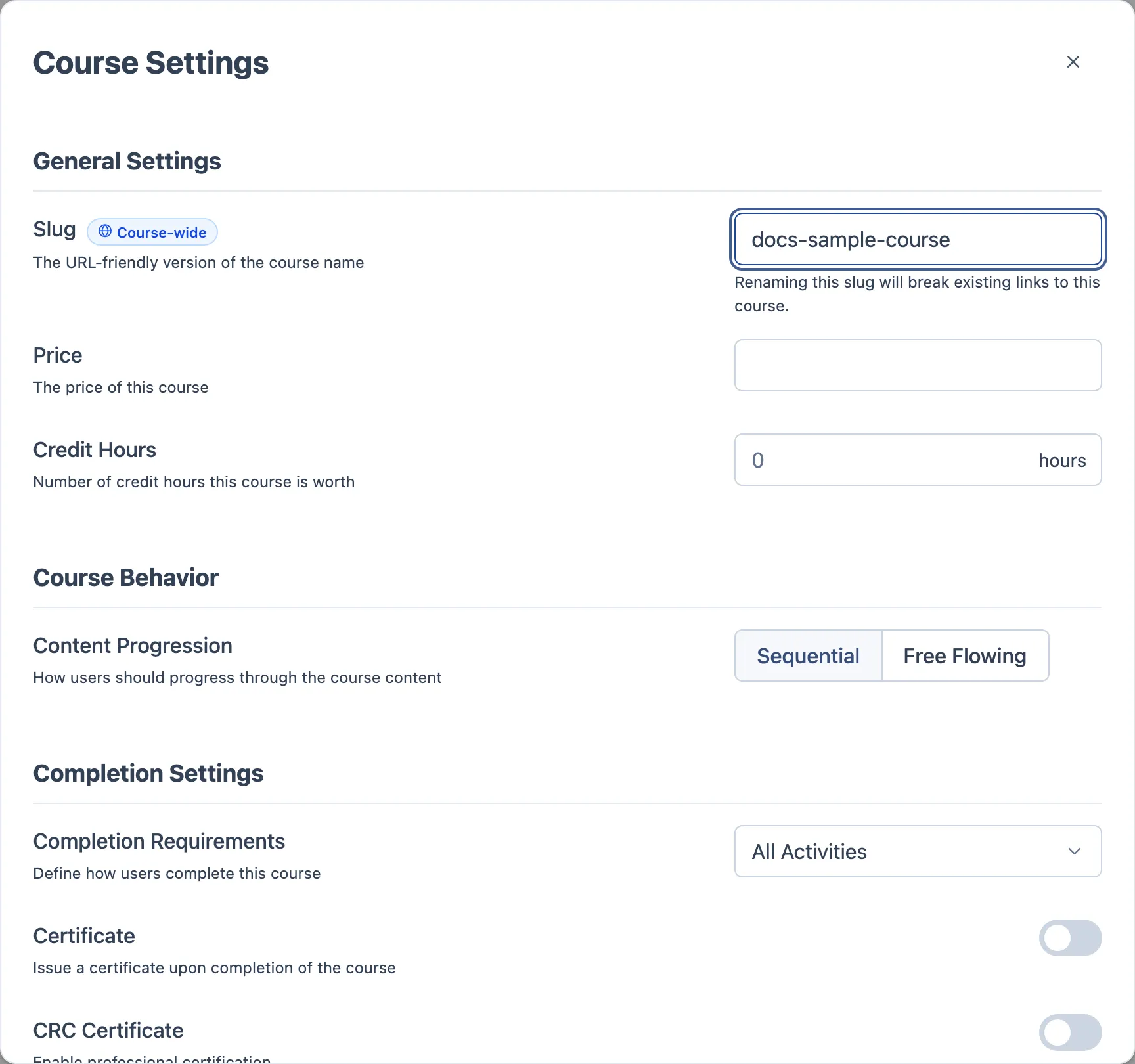
The Course-wide badge — read this first
Most settings are release-pinned: they are frozen into a release when you publish, and a learner sees the settings of the release they are on. Change one and nothing happens for existing learners until you publish again.
Fields carrying a Course-wide badge are the exception. They live outside the release snapshot and apply immediately, to everyone, published or not.
| Behaviour | Fields |
|---|---|
| Course-wide — live for everyone, no publish needed | Slug, the whole Access Settings section, Schedule & Recurrence |
| Release-pinned — only reaches learners on the next publish | Price, Credit Hours, Content Progression, all Completion settings |
Testing this distinction is worth more than testing any single field:
- Change the Registration Key without publishing → the gate changes now, for everyone.
- Change Content Progression without publishing → existing learners keep the old behaviour until a new release.
Both are correct. Reporting either as a bug wastes a cycle.
The same split decides what a history revert puts back — course-wide fields survive a revert untouched.
General Settings
| Field | Notes |
|---|---|
| Slug (Course-wide) | The URL-friendly course name. Checked for availability as you type; a taken or invalid slug blocks the save with an inline error. A permanent warning says renaming breaks existing links — and it does |
| Price | What the course costs |
| Credit Hours | How many credit hours it is worth |
| External URL | An external link tied to the course |
Course Behavior
Content Progression — Sequential or Free Flowing. Sequential forces the learner through the outline in order; Free Flowing lets them jump. Default is Sequential.
This is the setting most visible to a learner, and the one to verify from their side in flow 7, not from the dialog.
Completion Settings
Completion Requirements decides when the course counts as done: All Activities, or Certain — which reveals a picker for exactly which activities are required.
Certificate and CRC Certificate are independent toggles:
- Turning Certificate on auto-fills a certificate name from the course title, and turning it off clears the name and the expiry offset.
- Turning CRC on auto-fills a CRC name and, when the tenant has exactly one template, auto-selects it. The CRC name, approval number and expiry stay disabled until a form template is picked.
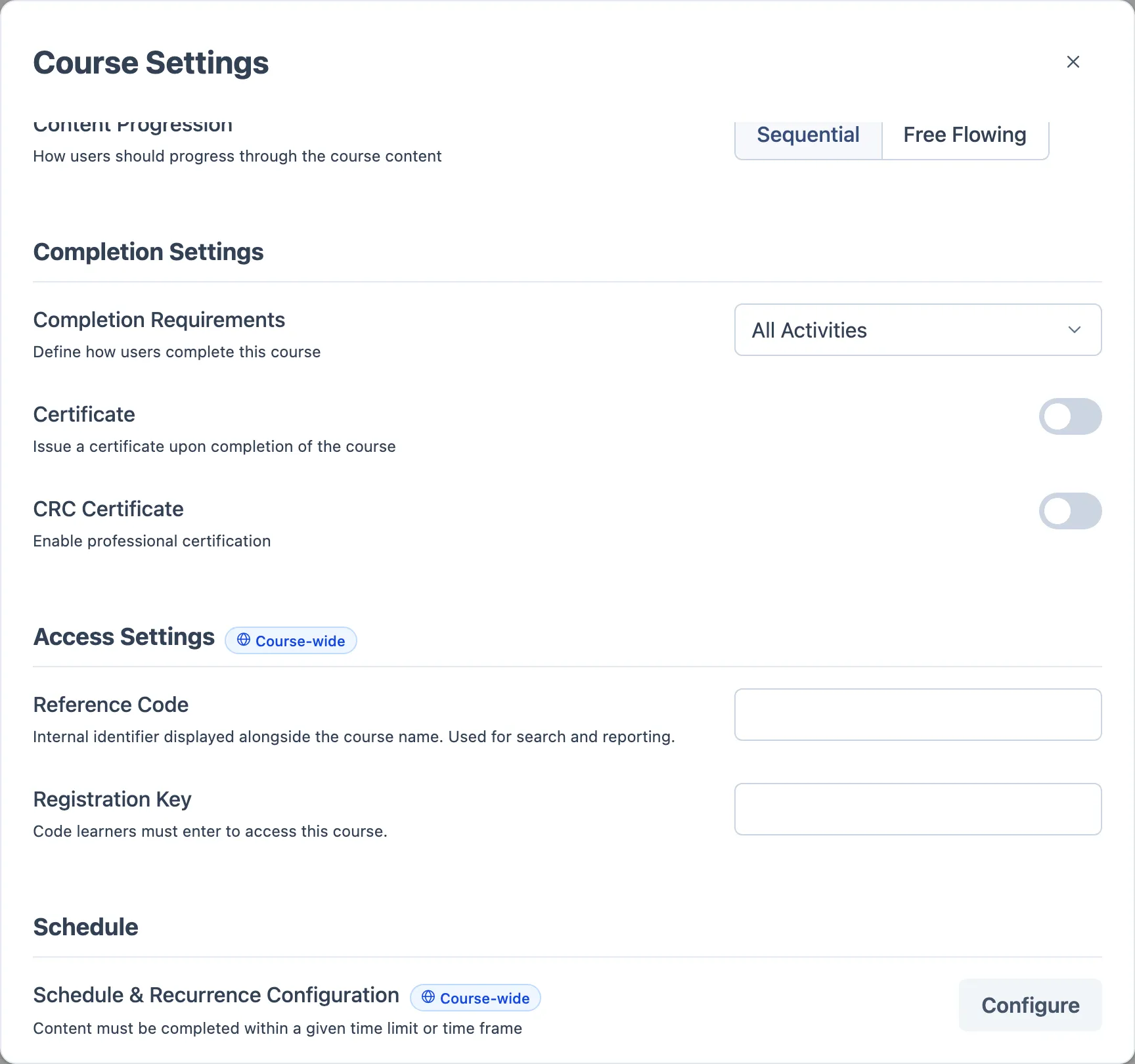
Besides All Activities and Certain, the rule can require only one kind of activity: Only quizzes, Only surveys or Only assignments.
Access Settings (Course-wide)
| Field | Notes |
|---|---|
| Reference Code | Internal identifier shown next to the course name; used in search and reporting |
| Registration Key | A code the learner must type to reach the course |
The whole section is live. A registration key typed here gates enrolment immediately — there is no publish step, and clearing it un-gates just as fast.
Schedule (Course-wide)
Configure opens the schedule and recurrence dialog — whether content must be completed inside a time limit or a time frame. Also live, also no publish needed.
Steps
- Change the slug to one that already exists on another course. Then to a valid one.
- Set Price and Credit Hours.
- Switch Content Progression to Free Flowing, then back to Sequential.
- Set Completion Requirements to Certain and pick two activities.
- Turn Certificate on, watch the name auto-fill, turn it off, turn it on again.
- Turn CRC on and confirm the name, approval number and expiry stay disabled until a template is selected.
- Type a Registration Key. Do not publish.
- Close the dialog, reload the page, reopen it.
What to check
- A duplicate slug is refused inline and the save is blocked.
- Everything survives the reload — the dialog has no Save button; it saves as you edit.
- The Registration Key you set in step 7 gates a learner without publishing — that is the Course-wide contract.
- Content Progression, changed without publishing, does not change what an existing learner experiences.
- The certificate name auto-fills from the title and clears on toggle-off.
- CRC metadata stays locked until a template is chosen.
- Switching Certain back to All Activities does not leave a stale required list behind.
Where it usually breaks
- A Course-wide field behaving as release-pinned, or the reverse — check the badge before filing.
- The slug check passing on a duplicate, or blocking a valid one.
- Certificate or CRC toggles leaving half-filled data behind after being turned off.
- Certain completion saved with nothing selected.