6. Enroll a learner
Goal: enrol the test learner and confirm they see the right version of the course.
Prerequisite: flow 5 done — the course must have at least one published release.
Two surfaces, different jobs
Enrolment lives in two places, and they are not the same tool.
| Workspace drawer | Enrollments page | |
|---|---|---|
| Reached from | the people icon in the workspace header | left sidebar → Enrollments, or Manage Enrollments from the overview list |
| Scope | a quick look while you are editing | the full management surface |
| Search | — | by name or email |
| Status filter | — | Active · In Progress · Completed · Dropped |
| Version filter | — | which release each learner is pinned to |
| Sorting | — | yes |
| Add users | yes | yes |
| Unenroll | yes | yes |
| Re-enroll | — | yes |
Do the quick checks in the drawer; do the real testing on the page.
The drawer
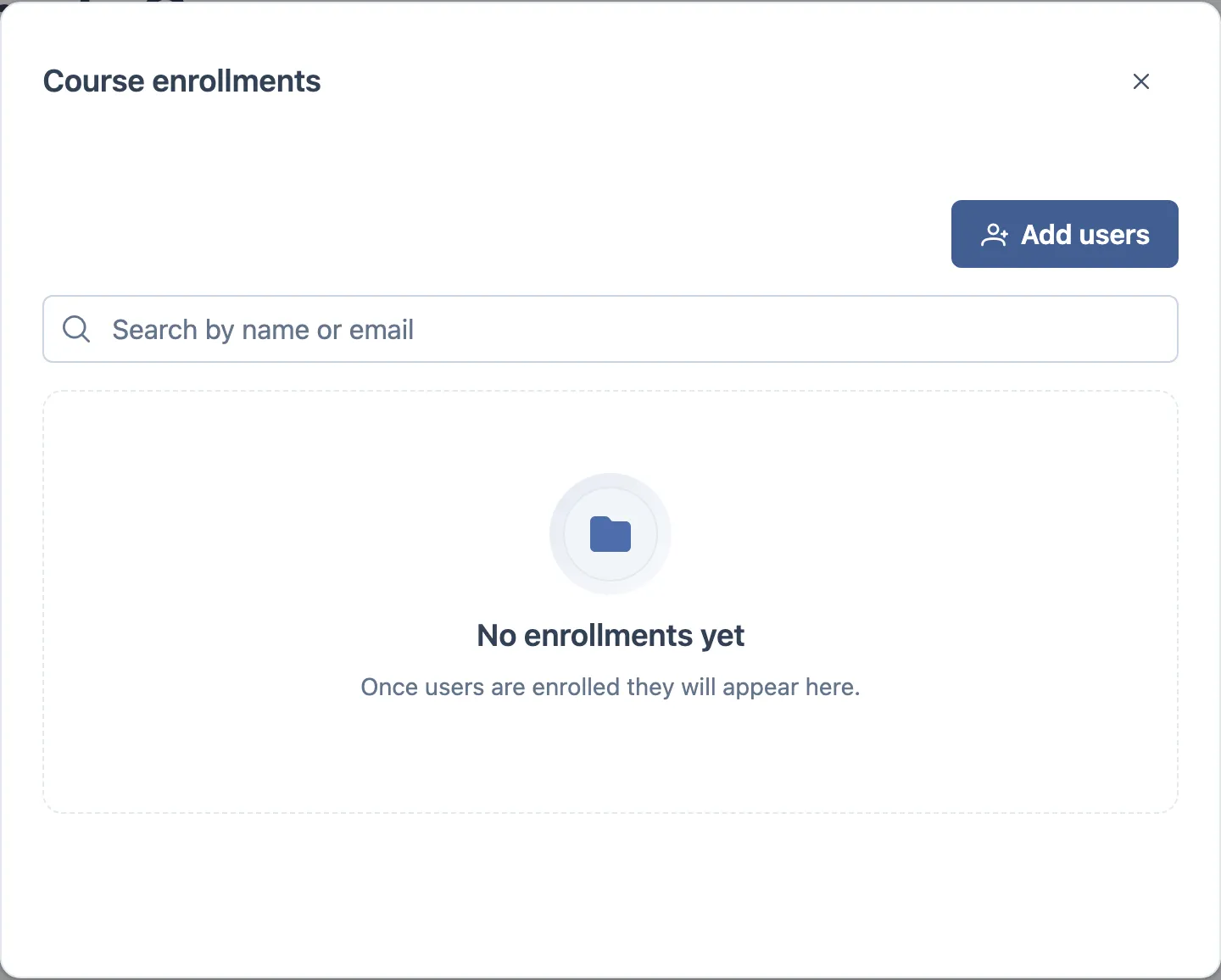
The gate here is soft. With no published release the drawer still opens, makes no request at all, shows Publish to start enrolling, and hides the Add users button. That is designed behaviour, not a broken screen.
The enrollments page
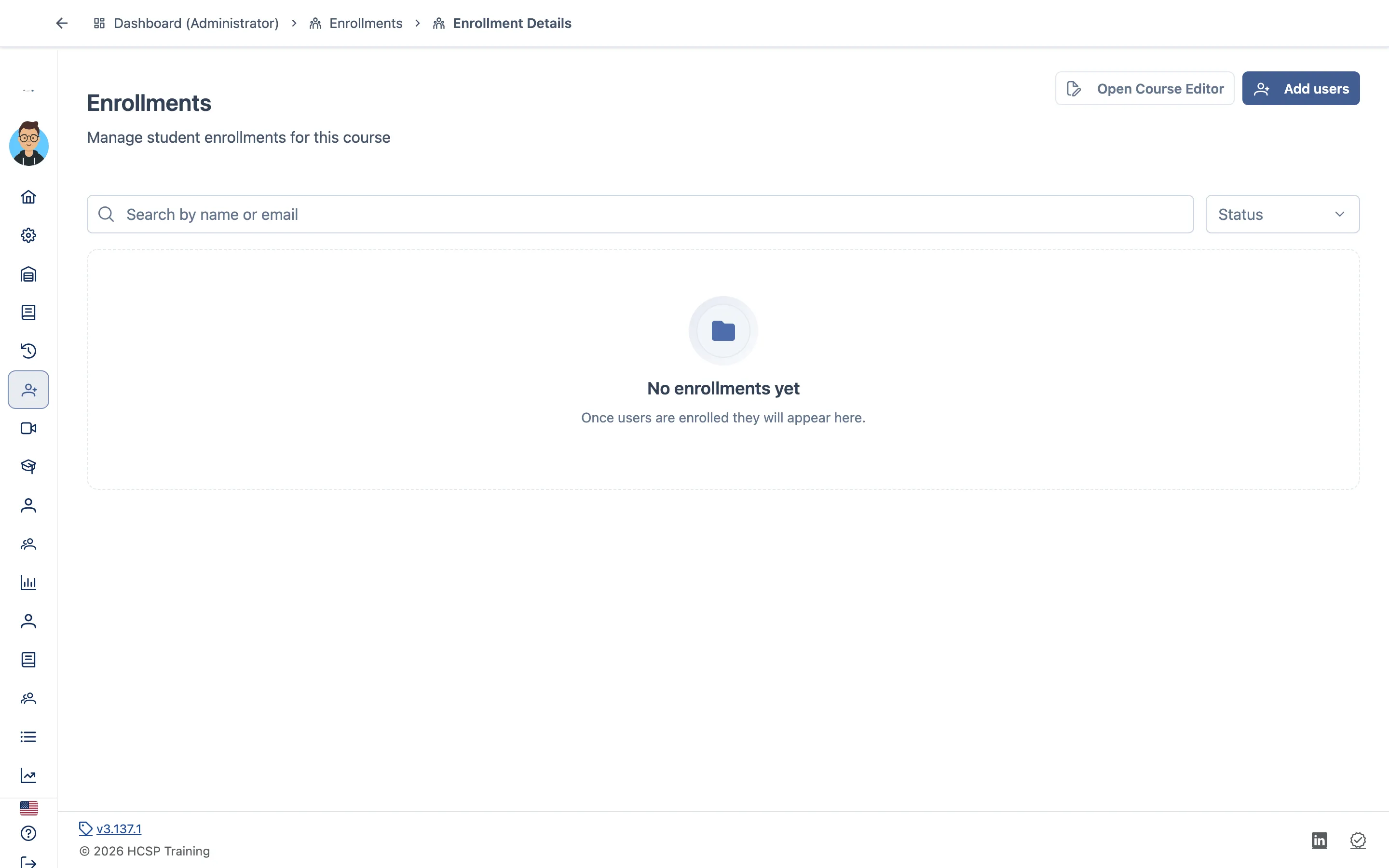
The overview at Enrollments lists the courses you can manage. Unpublished courses are disabled there with the tooltip “Publish the course before managing enrollments” — the same rule as the drawer, stated earlier.
Inside a course you get search (name or email), the status filter, the version filter, sort and pagination, plus Add users and a link straight back to the course editor.
What a row shows
Avatar, name and email, a status badge, a progress bar, the enrolment date and the row actions. Statuses are Active, In Progress, Completed and Dropped.
The progress cell deliberately overrides the stored number in two cases:
| Status | Progress shows |
|---|---|
| Completed | 100% — even when the stored number says otherwise |
| Dropped | — |
| anything else | the stored percentage |
So a green row at 100% is not proof the underlying number is right. Cross-check against the learner’s own view.
Unenroll and re-enroll
Unenroll asks to confirm by name. Re-enroll is the page-only action, and it resets the learner’s progress — the confirmation says so, and it is the one to read before clicking.
Re-enrolling creates a new attempt. The status filter looks at the learner’s current attempt only, not their prior ones — the empty state spells this out when a filter hides someone you expected to see.
Adding users
Add users opens a searchable, paginated directory picker. Selection is kept across pages — pick someone on page 1, move to page 2, pick another, and both are enrolled on confirm. Already-enrolled people are marked as such.
Steps
- From the workspace, open the drawer and confirm the empty state and the hidden Add users while the course is unpublished. (Publish first if you already did flow 5.)
- Open the Enrollments page for the same course.
- Add users — enrol your test learner. Pick two people across two pages of the picker.
- Confirm both rows appear, with status and enrolment date.
- Sign in as the learner in another window and confirm the course appears.
- Filter by each status in turn; search by name and by email.
- Re-enroll the learner and read the confirmation before accepting.
- Unenroll the second person.
What to check
- The learner sees the course at the version they were pinned to, not your working draft.
- Both people picked across different pages of the picker end up enrolled.
- The status filter narrows to exactly the matching rows, and its empty state explains itself rather than looking broken.
- The version filter groups learners by the release they are on — after a major publish, older learners should still show the older version.
- Re-enroll resets progress, and the confirmation warned you first.
- Unenroll removes only that person, after confirming by name.
- Counts agree between the drawer, the page and the release card in the Versions drawer.
Where it usually breaks
- Enrolling into a course with no published release.
- The enrolled count disagreeing between surfaces.
- Re-enroll keeping progress, or unenroll taking a neighbouring row.
- A learner pinned to the wrong version after a major publish.