Quiz
A Quiz is scored. The learner answers questions, gets a grade, and that grade reaches the gradebook.
The editor has three parts: the header (title, instructions, image), the questions, and the settings.
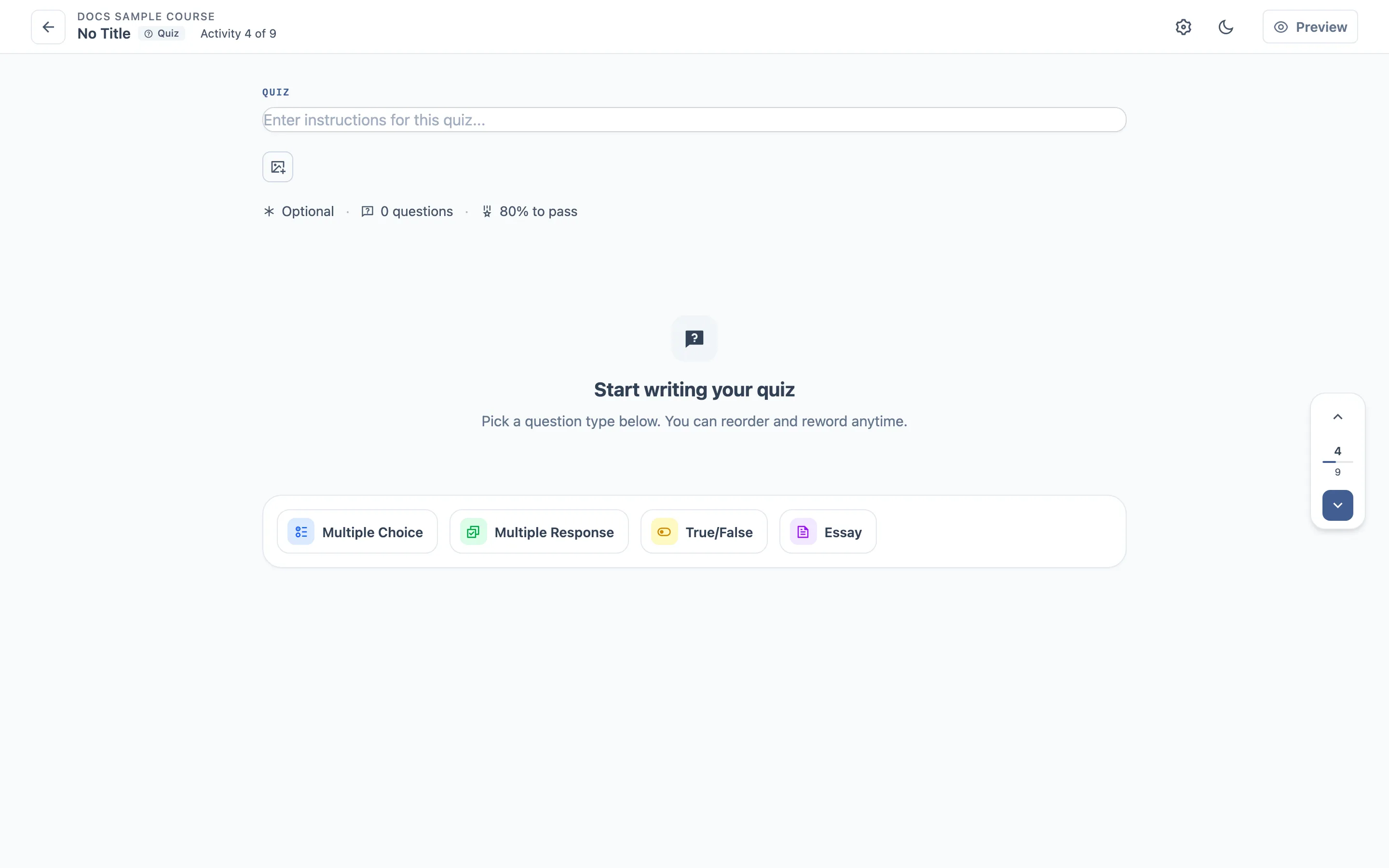
Question types
An empty quiz offers four, straight from the empty state; the same picker sits under the question list once there are questions:
| Question | Learner does | Auto-graded |
|---|---|---|
| Multiple Choice | picks one option — exactly one is right | yes |
| Multiple Response | picks several — more than one is right | yes |
| True/False | picks one of two | yes |
| Essay | types free text | no |
Rating is a survey type, not a quiz type — a quiz will not offer it. If you see it here, that is a bug worth reporting.
Essay questions are not auto-graded. They land in the gradebook for an instructor to grade by hand, and the learner’s final score is not settled until that happens.
Reordering questions
Each question carries the same header controls as a lesson block — Move up, Move down, Duplicate, Delete — and the side panel, here titled Questions, lists them with their number and type. Drag a card to reorder, click one to jump to it, or tick several to move or delete them as a group. Full walkthrough in what activities share.
Question order matters more here than in a lesson: it is what random questions draws from, and what the learner sees when randomization is off.
Settings
The shared grading block, with the quiz-specific additions:
| Setting | Default | Notes |
|---|---|---|
| Points | 0 | what the quiz is worth |
| Require a minimum score to continue | off | blocks the learner from moving on until they pass |
| Minimum score | 80 | the pass mark, in percent |
| Attempts | 3 | how many tries the learner gets |
| Show answer feedback | off | per-answer feedback after submitting |
| Show review | off | learner can review their attempt |
| Show correct answer | off | reveals the right answer |
| Random questions | off | draws a random subset |
| Number of random questions | 0 | how many to draw |
Steps
- Add three questions: one multiple choice, one true/false, one essay.
- Give each option per-answer feedback.
- Set Points to 10, Minimum score to 50, Attempts to 2.
- Turn on Show correct answer and Show review.
- Turn on Random questions and set the count to 2.
- As a learner, take the quiz — leave the essay blank on purpose.
- Submit, then try again until you run out of attempts.
- As an instructor, grade the essay in the gradebook.
What to check
- Only 2 of the 3 questions appear when random questions is set to 2, and the draw changes between attempts.
- Attempts stop at 2 — the third try is refused.
- With minimum score to continue on, failing really does block the next activity.
- A blank essay counts as wrong — that is intentional, not a bug.
- Feedback, review and correct answer appear only when their setting is on.
- The grade shown to the learner matches the gradebook.
- After the essay is graded, the learner’s score updates.
Where it usually breaks
- The random draw returning the same subset every attempt, or the wrong count.
- Attempts counted one off — the learner gets one try too many or too few.
- A quiz stuck waiting for review even after every essay has been graded.
- The score changing after a reload.