4. Activities
Goal: understand the seven activity types before testing them one by one.
Prerequisite: flow 2 done — the outline holds the activities you are about to fill in.
An activity is one unit of content a learner works through. The outline holds them; this section is about what is inside each one.
The seven types
| Type | What the learner does | Graded |
|---|---|---|
| Lesson | Reads and watches content | no |
| Quiz | Answers questions, gets a score | yes |
| Survey | Answers questions, no score | no |
| Assignment | Submits work for an instructor to grade | yes |
| Forum | Posts and replies in a discussion | yes |
| Meeting | Joins a live Zoom or Teams session | no |
| External Course | Plays an imported package (SCORM, xAPI, cmi5, AICC) | depends on the package |
What they all share
How you open one. In the outline, in Edit mode, use the Add content action on the activity’s row. Each type has its own editor, but they are built the same way: a header with the title, instructions and an optional image, then the type-specific body.
How they save. No activity has a Save button. Everything you change is written into the course through the same pipeline as the rest of the workspace, and the same edit lock applies — one person at a time. If you want proof a change landed, reload.
Where they live. Activities are stored inside the course, not as separate records. That is why removing an activity from the outline removes it entirely.
Moving between activities
Every activity editor carries a navigator on the right edge — a small vertical rail with a previous arrow, the position indicator, and a next arrow.

It is how you walk the whole course without going back to the outline. Three rules decide whether you see it at all:
- It only renders when the course has more than one activity.
- It is desktop-only — below a large viewport it is not rendered, so on a phone the outline is the only way between activities.
- Previous is disabled on the first activity, Next on the last. They do not wrap.
Clicking the position indicator expands a panel listing every activity in the course with its type, the current one marked Editing:
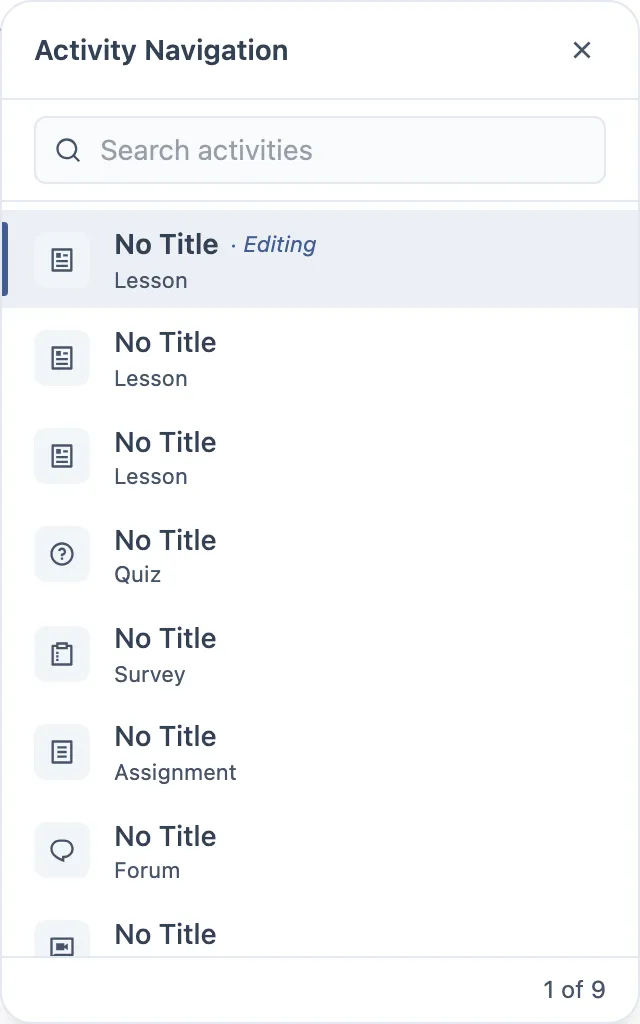
- Clicking a row jumps straight into that activity’s editor.
- A search field appears only once the course has more than eight activities.
- The footer reads
N of M, orShowing N of Mwhile a search is filtering. - Clicking outside the panel closes it.
What to check
- The count matches the number of activities in the outline, and the position matches where you actually are.
- Next from the last activity and Previous from the first do nothing — no wrap, no error.
- Jumping to another activity does not lose unsaved edits in the one you are leaving.
- The navigator disappears on a course with a single activity, and at phone width.
- The search appears at nine activities and not at eight.
- Rows are reachable and openable by keyboard.
Moving blocks, the sidebar and batch actions
Lesson, Quiz and Survey share one editing surface. A lesson stacks blocks; a quiz and a survey stack questions — but they are the same component underneath, so everything below works identically in all three. Only the wording changes.
Moving one block
Every block carries a header with the same four controls:
| Control | What it does |
|---|---|
| Move up / Move down | shifts the block one position |
| Duplicate | copies it in place |
| Delete | removes it |
The arrows are the keyboard-reachable way to reorder — Tab to one, press Enter. Test
that path; it is the one that gets skipped.
The sidebar
A panel on the side lists every block with its position number, its variant name and a live thumbnail. It is titled Content Blocks in a lesson and Questions in a quiz or survey, and it collapses to a Show blocks manager button.
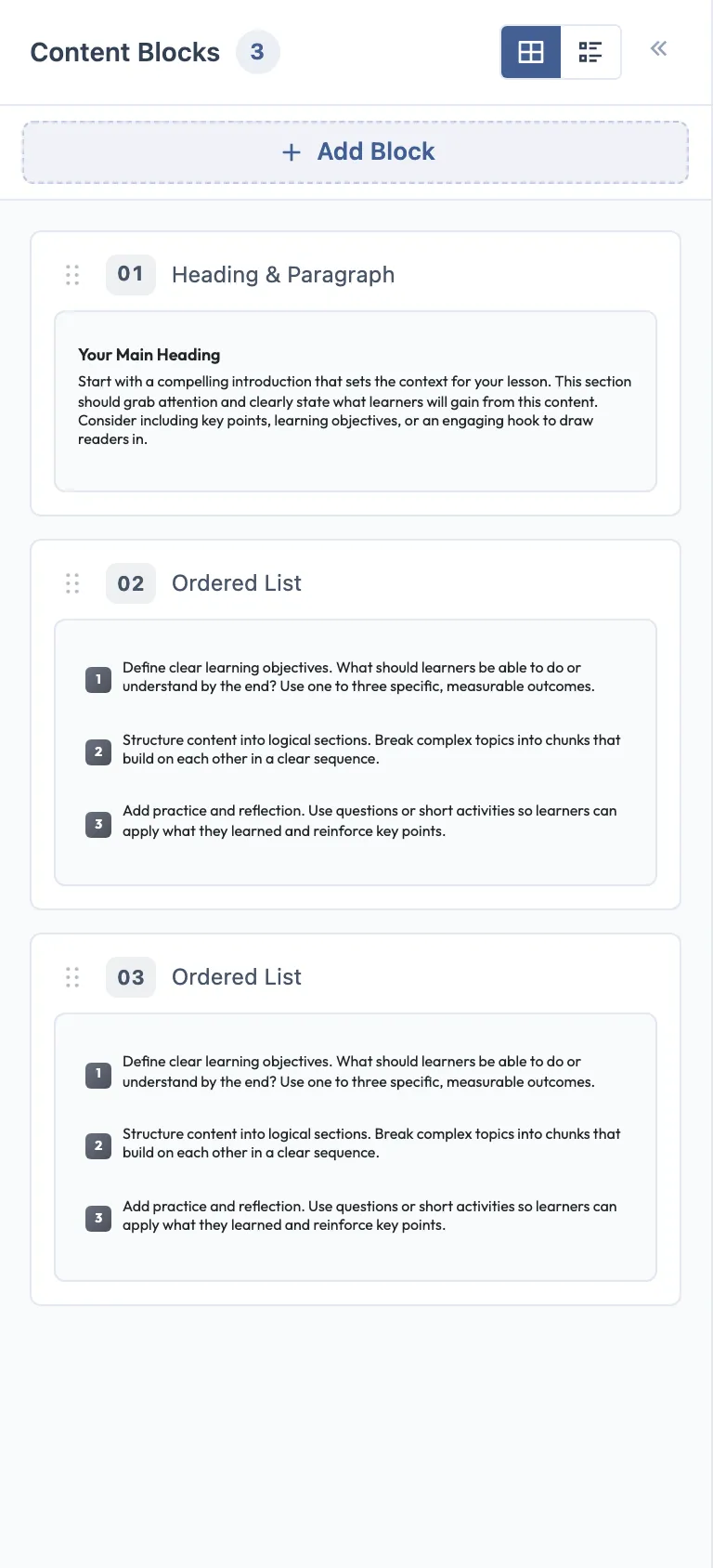
| Control | What it does |
|---|---|
| Grid / list toggle | two densities for the same list |
| Drag handle on a card | drag to reorder |
| Clicking a card | jumps to that block in the editor |
| Add Block / Add Question | adds from the sidebar |
| Collapse | hides the panel |
Selecting several at once
Hovering a card reveals a checkbox — that is the entry point, and it is easy to miss because nothing is visible until you hover. Tick two or more and a batch bar appears above the list.
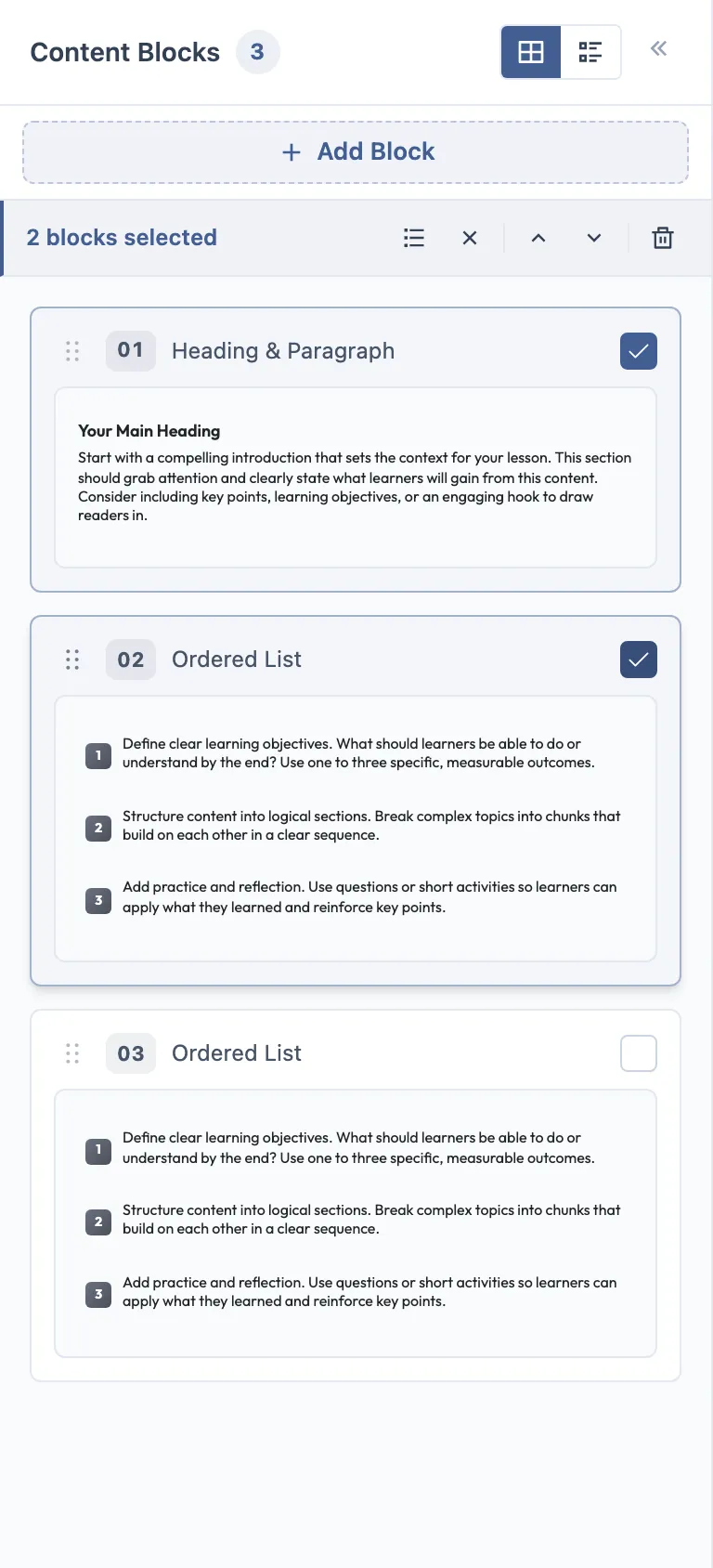
| Batch control | What it does |
|---|---|
| Select All | selects every block |
| Deselect all | clears the selection |
| Move up / Move down | moves the whole selection together |
| Delete | removes every selected block |
What to check
- Move up on the first block, and move down on the last, do nothing rather than wrapping.
- The arrows work by keyboard alone.
- Dragging in the sidebar reorders the editor too — the two views never disagree.
- The index numbers renumber after any move.
- A batch move keeps the selected blocks in their relative order.
- Batch delete removes exactly the selection, nothing adjacent.
- The count in the sidebar header matches the number of blocks.
- All of it survives a reload.
Grading settings
Quiz, Assignment and Forum share the same grading block. The same fields, the same defaults:
| Setting | Default | What it does |
|---|---|---|
| Points | 0 | How much this activity is worth |
| Require a minimum score to continue | off | Blocks progress until the learner passes |
| Minimum score | 80 | The pass mark, in percent |
| Attempts | 3 | How many times the learner may try |
| Show answer feedback | off | Reveals the per-answer feedback after submitting |
| Show review | off | Lets the learner review their submission |
| Show correct answer | off | Reveals the right answer |
Two of these are worth extra attention, because they change what the learner can do rather than what they see: minimum score to continue and attempts.
Deadlines
Assignment and Forum share a deadline model with three modes:
| Mode | Meaning |
|---|---|
| No deadline | open forever |
| Fixed date | a specific date and time |
| Time limit | a window counted from enrollment, in days, weeks or months |
What to check across every type
- The title you type in the editor is the title shown in the outline.
- Instructions with accents and formatting survive a reload.
- A setting changed in the editor is still set when you come back to it.
- Removing the activity from the outline removes its content too.