Meeting
A Meeting is a live session. The course does not host it — it schedules it with the provider and gives the learner a way in.
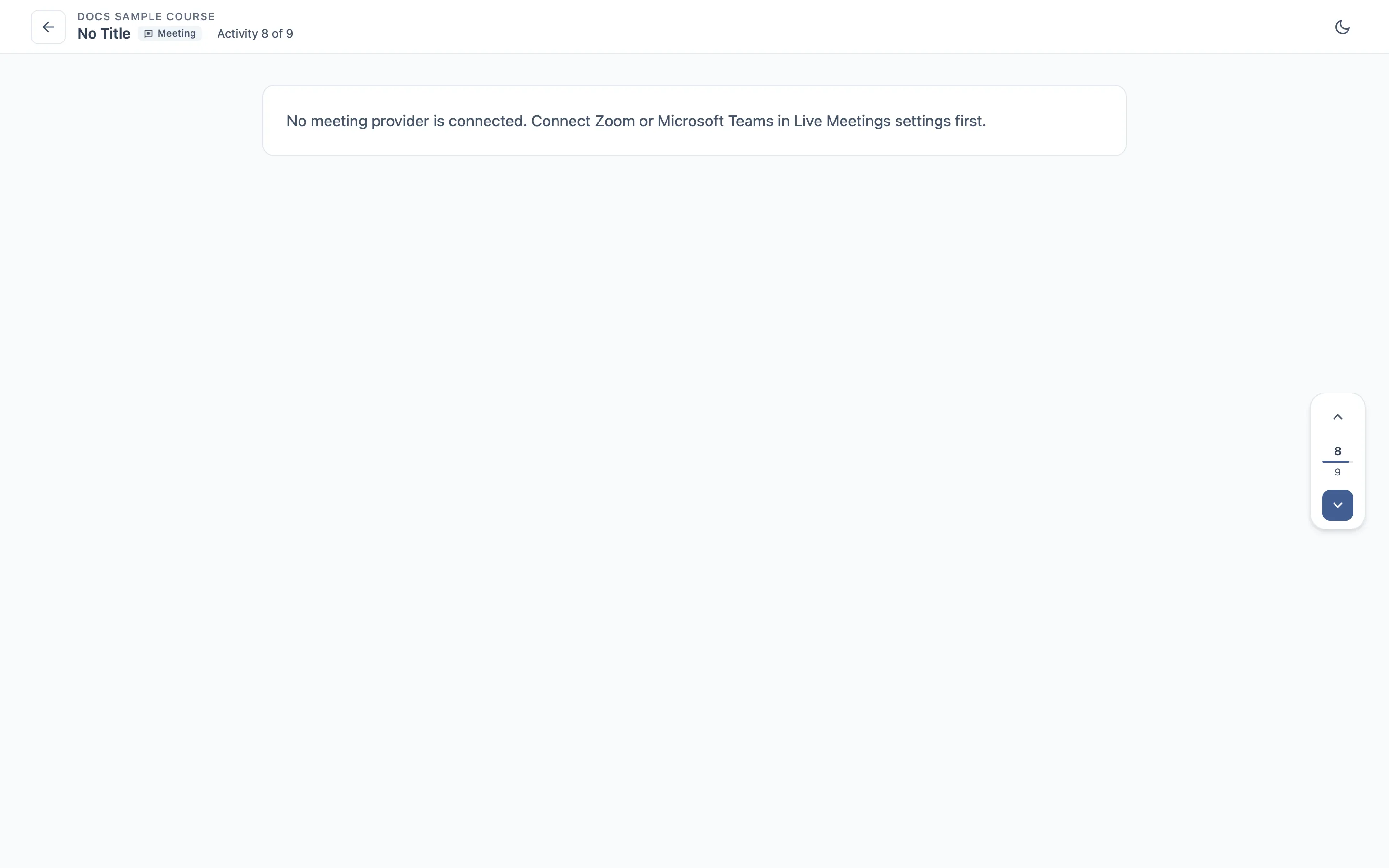
The editor
| Field | Notes |
|---|---|
| Provider | Zoom or Teams |
| Kind | for Zoom: Meeting or Webinar |
| Topic | the session name |
| Agenda | what it covers |
| Start | date and time |
| Duration | a number plus a unit — minutes or hours |
| Time zone | which zone the start time is in |
| Organizer | the account that owns the session |
Once it is scheduled, the activity carries the meeting id, the join link for learners and, for the organizer, a separate start link — plus a passcode when the provider issues one.
Steps
- Create a meeting with Zoom, a topic, an agenda, a start an hour from now and a 60-minute duration.
- Save, reopen, and confirm the join link exists.
- Change the start time and the duration, and confirm the change reaches the provider.
- Switch a meeting to Teams.
- As a learner, open the activity and use the join link.
- Set the time zone to something other than your own and check the displayed time.
What to check
- The time the learner sees matches the time zone that was set — this is the field most likely to be wrong.
- Rescheduling updates the existing session instead of creating a second one.
- The learner gets the join link, never the organizer’s start link.
- A passcode, when there is one, is shown to the learner.
Where it usually breaks
- Timezone drift between the editor, the learner view and the provider.
- The join link disappearing after an edit.
- A duration in hours being read as minutes.